NewzBook is an application I wrote to centrally manage my downloads and media. It has integration points with various indexing sites, SABnzbd, media management, etc. I originally designed the application for the Popcorn Hour, but I am now using XBMC again. I personally use the XBMC Live variant, so I’ve written up some instructions so other XBMC Live users could also use my NewzBook app.If you haven’t heard of NewzBook before, I would recommend checking out this thread on the NMT forums which describes what it does… I’ve also attached a few screenshots after the jump below.
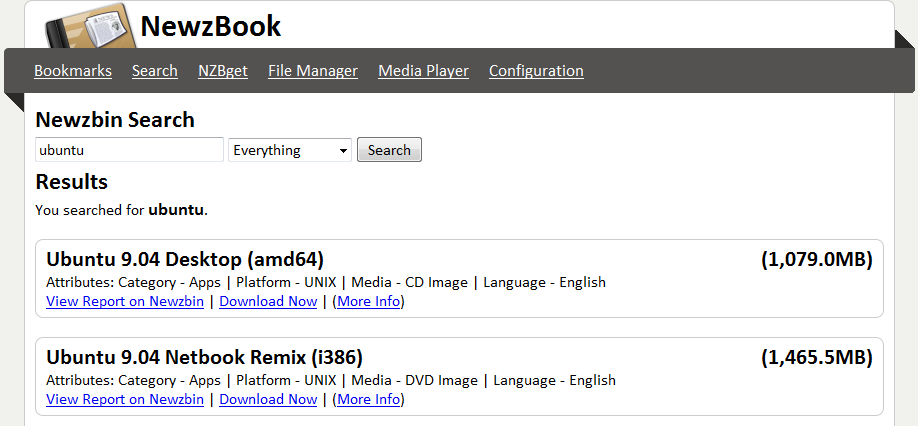
A few more screenshots and then the instructions on how to install NewzBook on XBMC Live…
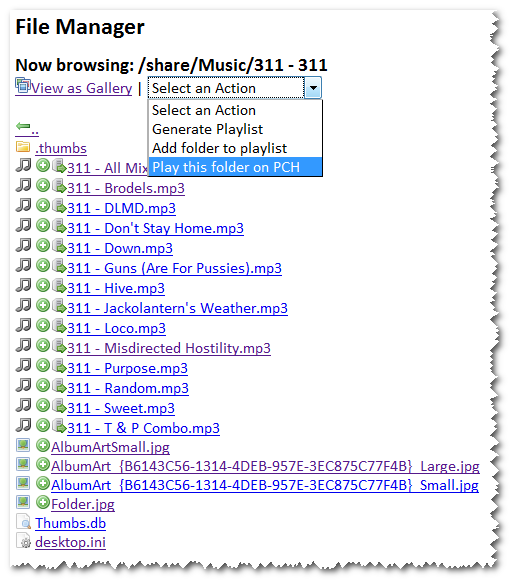
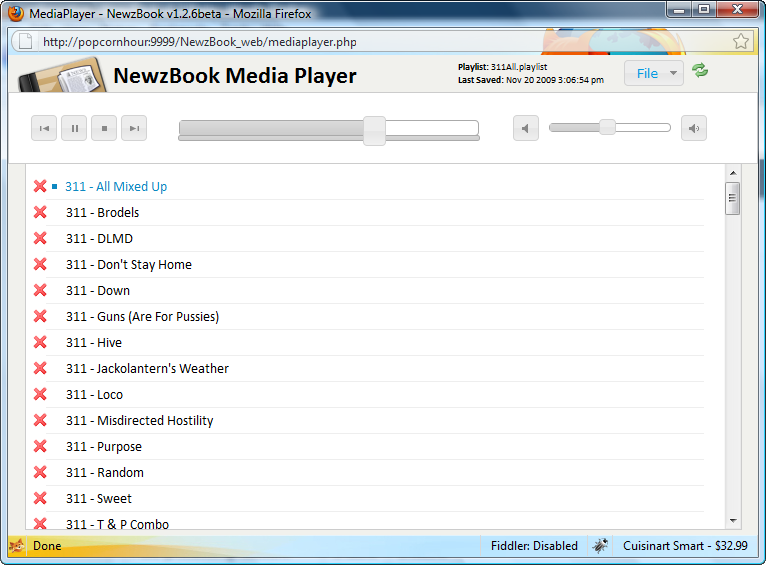
Installation Instructions
Install Apache2 — enter the below command and press ‘Y’ when prompted to install the pre-requisites:
sudo apt-get install apache2 php5
Download NewzBook and copy the core files to your home directory
>Note: if you get a message saying wget is not installed, first run ‘sudo apt-get install wget‘
cd ~ wget http://newzbook.googlecode.com/files/newzbook127beta.zip unzip newzbook127beta.zip mkdir NewzBook tar -xvf newzbook127beta.tar -C NewzBook rm newzbook127beta.tar newzbook127beta.zip
Create a symbolic link to the NewzBook webui folder from the Apache default website.
sudo ln -s ~/NewzBook/webui /var/www/NewzBook
Note: Apache2 has the concept of sites, which are separate configuration files that Apache2 will read. These are available in/etc/apache2/sites-available. By default, there is one site available called default this is what you will see when you browse to your XBMC machine. The standard configuration for default keeps the content in /var/www. This is where we will create a symbolically linked subfolder for NewzBook.
Make the configuration file writeable:
sudo chmod 777 ~/NewzBook/configuration/config.ini
Verify that apache is running by opening http://YourXBMCIP/
If you don’t see a ‘It Works!’ message then you probably don’t have apache running. You can check by seeing if it’s processes are running (you should see a couple lines with apache started):
ps -eaf | grep apache
Verify that NewzBook is rendering by opening http://YourXBMCIP/NewzBook
sudo apt-get install libapache2-mod-php5 sudo a2enmod php5 sudo /etc/init.d/apache2 restart
Congrats! NewzBook should now be installed. Visit the configuration page to add in your account details and finish the configuration.
OPTIONAL: Enable SABnzbd to be accessed via Apache2
Install the Proxy Module, load it, then reload apache:
sudo apt-get install libapache2-mod-proxy-html sudo a2enmod proxy sudo a2enmod proxy_http sudo /etc/init.d/apache2 reload
Open the apache configuration:
sudo nano /etc/apache2/httpd.conf
Paste in the below content
<Location /sabnzbd="/sabnzbd"> order deny,allow deny from all allow from all ProxyPass http://192.168.1.10:9995/sabnzbd ProxyPassReverse http://192.168.1.10:9995/sabnzbd </Location>
Make sure you update the IP address and port to your own IP address and port (in the above configuration). Save and close (Ctrl+O, Enter, Ctrl+X). Restart apache:
sudo /etc/init.d/apache2 restart
You should now be able to go to http://yourXBMC/sabnzbd and see your SABnzbd!


Leave a Reply